

Create Your TronBid Seller Storefront: Your Brand, 0% Commission
Create a branded TronBid storefront for TRON Energy and Bandwidth. Set up your logo, link and offers, bring your customers and pay 0% seller commission.
You bring the customers. Your page carries your brand. When a buyer purchases your Energy or Bandwidth through your TronBid storefront, the seller commission for that purchase is 0%.
A seller storefront gives you a personal page on TronBid with your own name, logo, cover, description and memorable link. Your active Marketplace offers appear there automatically, while checkout and resource delivery use TronBid’s existing purchase flow. You do not need to build a separate website or keep a second inventory up to date.
This guide walks through setup using the test storefront Alex Energy at tronbid.com/alex. Its design is an example, not a promise of availability or a recommendation of a particular seller.
What a TronBid seller storefront gives you
- Your own identity: a store name, visual style and text written for your customers.
- A direct link: share tronbid.com/your-name in the channels where people already know you.
- 0% seller commission on purchases started through your storefront.
- One set of offers: quantities, prices and rental terms stay connected to your Marketplace listings.
- Reasons to return: buyers can save the seller and choose Telegram availability alerts.
- Feedback and measurement: wallet-authenticated reviews, visits, completed sales and commission-savings statistics.
The storefront is built for sellers with their own audience: a Telegram community, repeat customers, a resource-rental business or people who already ask them for TRON Energy. TronBid does not list individual storefronts in a public seller directory or promote them from the main navigation. You choose how to attract visitors.
How the 0% seller commission works
The important detail is where the purchase begins. A buyer opens your storefront, selects one of your offers and continues through its purchase flow. That purchase receives 0% seller commission. Sharing a link to the general Marketplace does not give the same benefit; ordinary Marketplace purchases retain the applicable commission.
For an illustrative sale priced at 100 TRX, the platform’s seller commission through the storefront is 0 TRX. If the same sale would normally have a 12% seller commission, that commission would be 12 TRX. This example explains the difference; 12% is not a rate promised to every account. Network costs and any separately displayed payment charges are different from seller commission.
There is no referral payout from a zero-commission storefront sale. If a visitor follows View Marketplace and starts an ordinary Marketplace purchase instead, the usual Marketplace rules apply. The storefront does not change previously accepted orders.
Before you create your page
Sign in with the seller wallet that owns the offers you want to show. Creating and publishing a storefront requires confirmed resource-selling Permissions. If the editor asks you to set them up, open Seller Settings, review the permission request in your wallet, complete the setup and check its status again. Never share your seed phrase or private key to create a storefront.
Also prepare a short name, a link you can keep using, a logo, a wide cover and a few sentences describing what you sell. To receive purchases, you need eligible active seller offers and enough available resources. Publishing a page by itself does not create Energy, Bandwidth or new listings.
Create your storefront step by step
1. Open the storefront editor
Go to Dashboard and choose the seller-page tab marked 0% Fee and New!. You can also open the storefront editor directly after signing in. Confirm that you are using the correct seller account before you start.
2. Set your name and link
In Brand, enter a Storefront name and Your link. A clear name such as Alex Energy is easier to recognize than a wallet address. The short part of the link must contain 3–40 lowercase Latin letters, numbers or hyphens. Existing users’ names and reserved site routes cannot be taken; availability is checked when you save.
You can change the slug once every 24 hours. Choose something memorable before putting it on banners or QR codes. Changing the page’s text, images or colors does not require changing its link.
3. Add a logo, cover and colors
Upload a square logo, ideally 512 × 512 px, and a cover, ideally 1600 × 600 px with an 8:3 aspect ratio. PNG, JPG and WebP are supported, up to 5 MB per file. Images are cropped automatically, so keep important details away from the edges.
Choose a light or dark theme and an accent color that fits your brand. A simple logo and a clear cover usually work better on mobile than a banner filled with tiny text. Use the preview to check both the store identity and the offer cards.
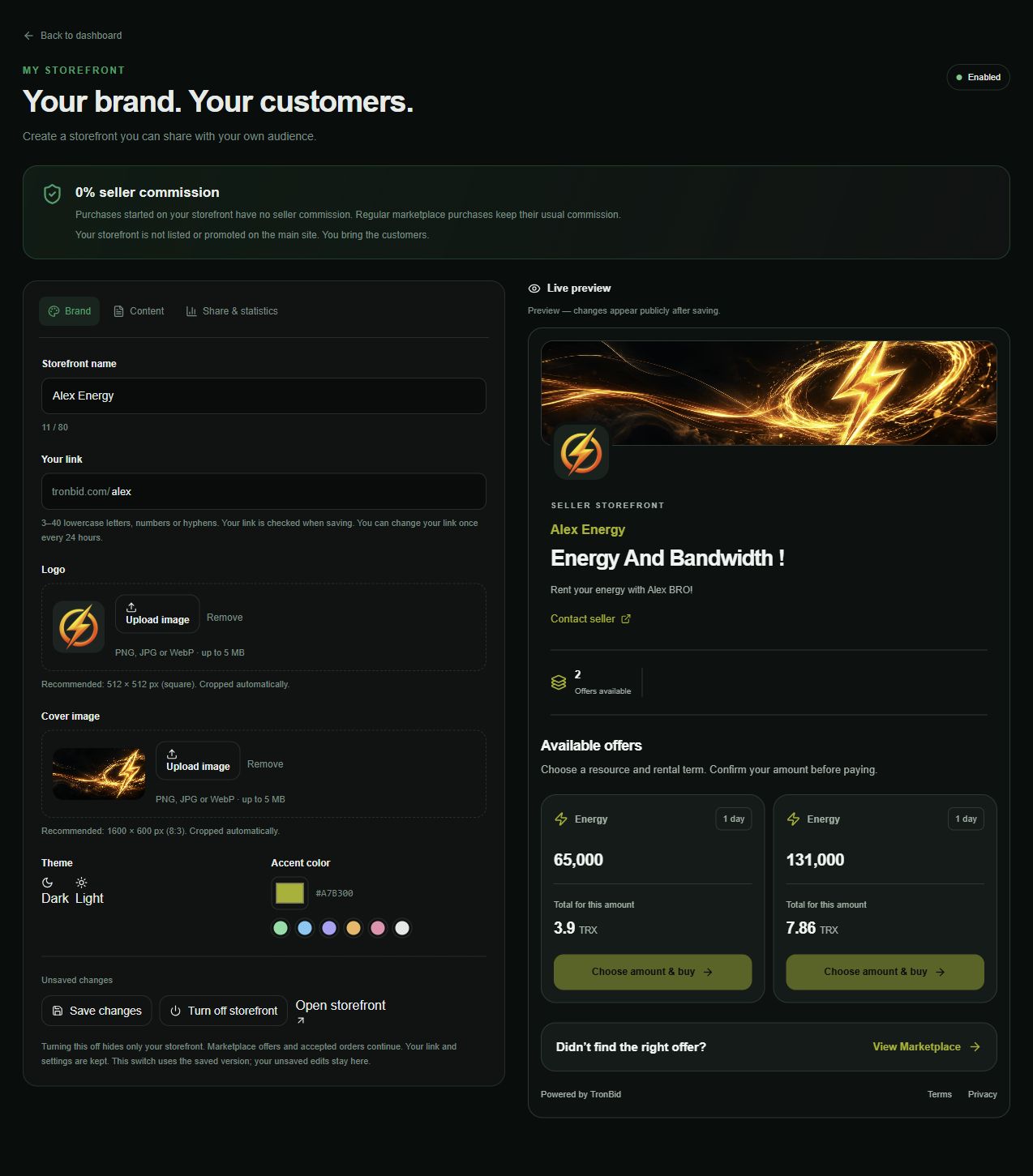
Editor example using Alex Energy’s public branding. The localized setup screen is shown in an isolated documentation preview; the example does not change the live storefront.
4. Explain what customers can expect
In Content, write your headline and About your store. Answer three questions: what resources do you offer, who are they for, and why should someone return to your page? Mention only rental terms and service conditions you actually provide.
For example: “TRON Energy and Bandwidth for your next transaction. Choose an available offer, check the amount and rental term, and complete payment through TronBid.” Keep changing prices in the offer cards instead of hard-coding a temporary price into your headline.
You may add a public Telegram username for questions. Customers should still pay through TronBid’s checkout. The page buttons support English, Russian, Spanish and Chinese; your own name and description remain the text you enter, so write for your audience.
5. Check your Marketplace offers
The storefront displays your active ordinary Marketplace offers, not a separate stock of products. Manage them in the Seller section: resource, quantity, rental term and price. An unavailable, reserved or inactive offer may not be available to a new buyer.
If your page has no offers, check the account, Permissions, resource availability and listing status before advertising it. You do not need to recreate the same offer solely for the storefront. For the listing process, see the manual TRON Energy selling guide.
6. Save, publish and inspect the result
Review the preview, then save your draft or publish the page. Open the published storefront and check the logo, text, contact link and available offers. On later edits, save changes before expecting them to appear publicly. If you already have a saved disabled storefront, use Turn on storefront to make it available again.
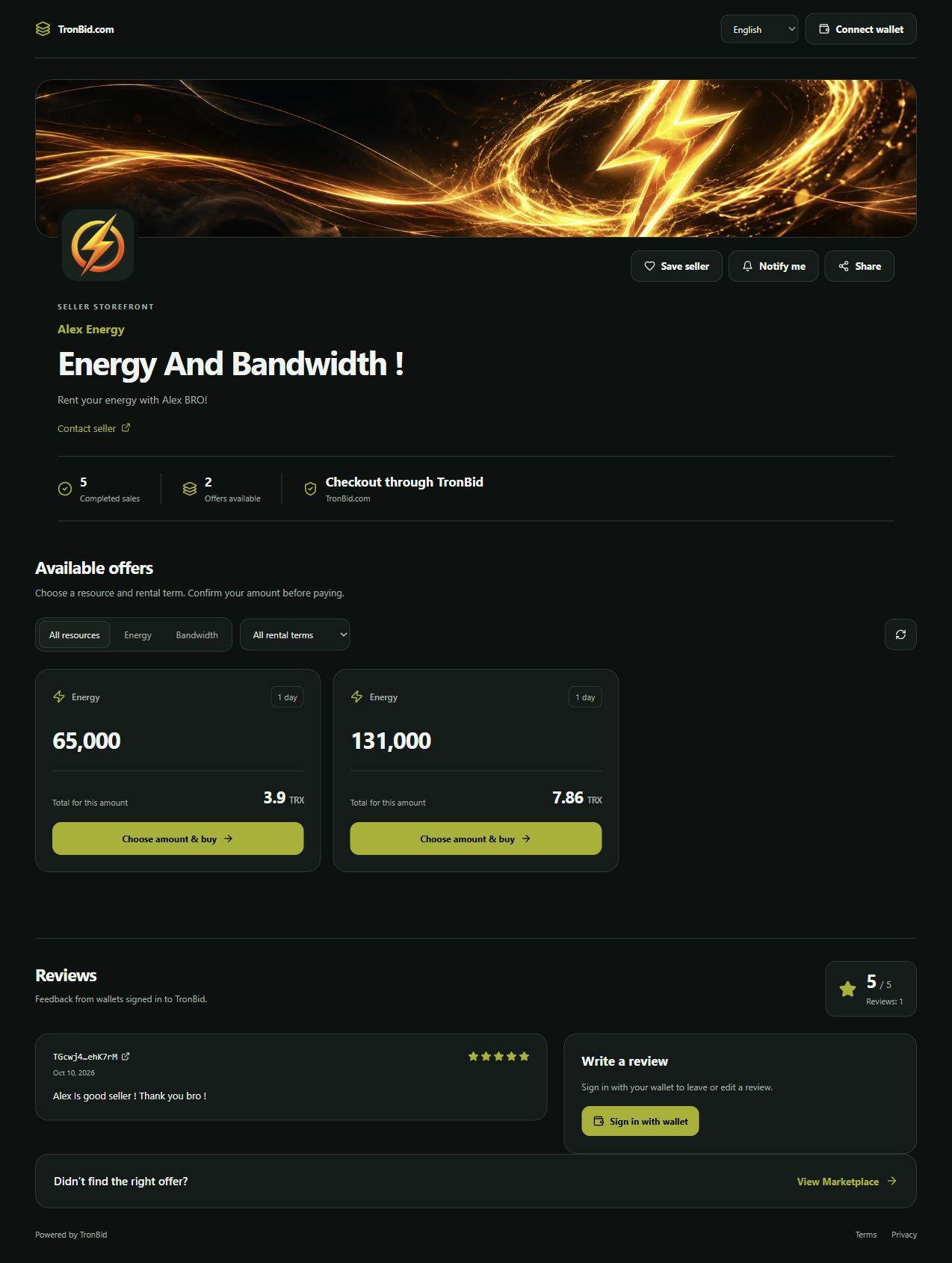
The test Alex Energy storefront, captured on 11 October 2026. Prices, availability and counters are examples from that moment and can change. The screenshot shows the buyer-facing page, not an earnings forecast.
7. Share your own link
Open Share & statistics to copy the link, share it on Telegram or download its QR code. Use the storefront address in your Telegram profile, a pinned introduction, your website or conversations with customers who have asked for your service.
Explain what the buyer will find: available resources, current price, rental term and checkout through TronBid. Ask customers to save the seller if they want to return. Avoid sending everyone to the general Marketplace when you intend the purchase to start through your own page.
8. Follow the first results
Share & statistics shows visits, checkouts, completed sales, returning buyers, revenue and saved commission. A visit is not a paid order, and a checkout is not yet a completed sale. Use the figures together: visitors with few checkouts may indicate unclear copy or unsuitable offers; checkouts with few completions deserve a closer look at order status.
Compare periods of promotion with the actual offers you had available. Change one thing at a time—your introduction, the offer mix or where you share the link—so you can tell what helped. The page makes sales easier to organize; it does not guarantee demand or income.
Help buyers come back
Save seller gives a customer a convenient way to find you again. Notify me is a separate opt-in for Telegram alerts when offers become available again; the customer needs Telegram linked to their account. It is not a subscription to unsolicited promotional messages.
Reviews combine a 1–5 star score with text. A wallet must sign in to leave or edit a review. Each wallet can keep one review per storefront, and the storefront owner cannot review their own page. A review does not require a purchase, so wallet-authenticated feedback should not be described as a verified purchase.
Storefront review stars and the financial seller rating are separate. New Energy and Bandwidth sales through a storefront do not increase the Marketplace seller rating. The reason to use the storefront is your own brand, repeat customers and the 0% seller commission on that sales channel.
Make your page useful in search and social previews
Use a specific name and a descriptive headline instead of repeating keywords. The page’s Title, search description and H1 are derived from your saved name and text. The editor includes a search preview; the storefront also supplies social-sharing metadata and structured data.
Published eligible storefronts are included in sitemap.xml and can be indexed. This gives search engines a way to discover the page, not a guarantee of indexing or position. The storefront stays outside the site’s seller-discovery navigation. Write original copy, use recognizable images and keep the page consistent with the link you share.
Pause the page without losing your setup
Use Turn off storefront when you want to hide it. Your link and settings remain saved. This hides the storefront only: existing Marketplace offers and accepted orders continue under their own rules. To stop offering resources as well, manage the offers separately.
If a customer cannot find suitable terms, View Marketplace gives them a way to compare other offers. A new purchase started there follows ordinary Marketplace commission rules.
Storefront or Automatic Seller?
A storefront helps you sell your ordinary offers to customers you attract. Automatic Seller is a different service: it supplies eligible Energy to automatic rentals using its current dynamic payout rate, reserve settings and optional daily payout. Creating a storefront does not switch on that service or apply its rate to your listings.
Read the Automatic Seller guide if you want automatic sales. If you want your own branded sales page, create your TronBid storefront: connect the seller wallet, confirm Permissions, add your brand and share the published link.