

How to Sell TRON Energy Automatically: Rates, Reserve & Daily Payouts
Set up TronBid Automatic Seller, understand dynamic TRX rates, keep an Energy reserve and enable daily payouts. Track confirmed sales and transaction IDs.

TronBid Automatic Seller lets you offer your available TRON Energy for rental without creating an offer for every sale. Connect a wallet with delegatable resources, review the seller permission and enable the rental terms you accept. Confirmed sales credit TRX to your TronBid balance; an optional daily payout sends eligible earnings to your chosen wallet.
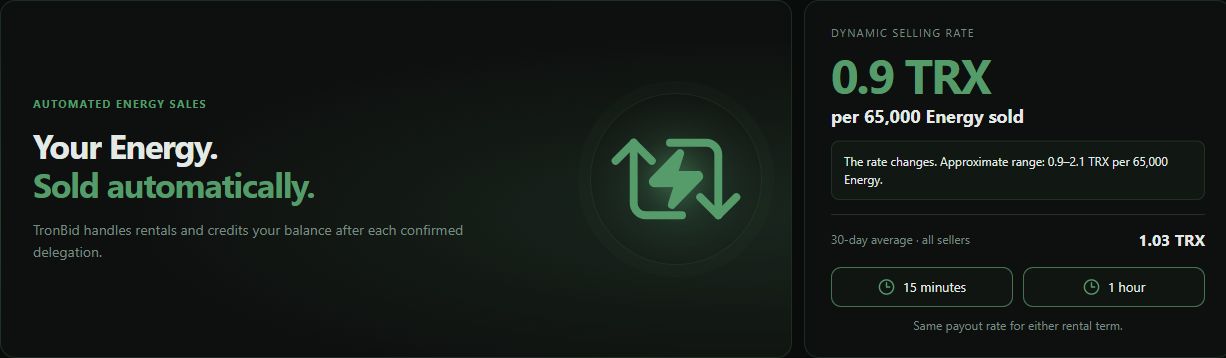
Automatic Seller interface, captured on 10 October 2026. Any rate shown in this screenshot is historical; check the current rate on the service page.
Start automatic Energy sales
- Open Automatic Seller and connect the wallet whose Energy you want to sell. Check that it has available, delegatable Energy; a USDT balance alone does not provide it.
- In the resource-selling permission card, choose Review and add, or check an existing permission. Read the permission summary and the wallet confirmation before signing. TronBid does not need your recovery phrase or private key.
- Wait until the resource-selling permission is confirmed. Review the available Energy shown on the page.
- Select 15 minutes, 1 hour, or both. Custom Lock uses the 15-minute setting.
- Enable automatic selling. TronBid can then match eligible customer rentals to your available resources. Being enabled does not guarantee a sale or a fixed daily income.
You supply resources from your wallet; you do not deposit the staked TRX into a TronBid investment account. Existing rentals remain active until their normal completion even if you turn new sales off.
Read the dynamic selling rate
The selling-rate card shows the current TRX payout per 65,000 Energy. It changes with the active retail base rate. Under the current policy, the seller rate is the base price for 65,000 Energy at 15 minutes minus 0.2 TRX. A base price of 1.3 TRX therefore gives a seller rate of 1.1 TRX. This is an example, not a live quote; use the card before enabling sales.
The same seller rate applies to 15-minute and 1-hour rentals. Custom Lock also uses the 15-minute base. Larger sales scale with the Energy sold, with credited amounts rounded down to 0.01 TRX. The rate is saved for each order, so a later price change does not rewrite an existing order’s earnings.
The approximate 0.9–2.1 TRX range on the page describes a changing rate, not guaranteed limits or a return on your TRX. Demand and available resources also affect how much Energy actually sells.
What the 30-day average means
The average covers actual credited sales from all Automatic Seller participants over the last 30 days, including sellers who later switched off. It is weighted by Energy sold: total credited TRX divided by total sold Energy, multiplied by 65,000. It is neither your personal daily income nor a promise of the next sale’s rate. Your own earnings, volume and completed rentals appear in Seller overview.
Keep Energy for your own transactions
Set Minimum remaining Energy in the options and save. For example, a reserve of 100,000 Energy keeps that amount out of new Automatic Seller rentals. A new rental must fit entirely above the reserve, so sales can pause before the displayed balance reaches exactly 100,000.
Sales resume automatically when enough eligible Energy becomes available for a whole rental above the reserve. You do not need to toggle the service again. A reserve of 0 means no reserve. This setting applies to Automatic Seller; it does not protect resources from your own wallet transactions or other selling modes. Manually switching selling off keeps it off until you enable it yourself.
Enable daily Automatic Payout
Turn on Automatic Payout, check the payout wallet and save the options. Use Edit to change the destination or Use account wallet to restore your account address. Verify the full TRON address before saving.
The service schedules a payout at 00:00 UTC each day when eligible Automatic Seller earnings reach at least 1 TRX. Smaller amounts carry forward. TronBid pays the network fee; no payout fee is deducted from the seller’s amount. Scheduling at midnight does not mean blockchain confirmation happens at exactly that second.
Only eligible Automatic Seller earnings are included, not deposits or other income. Earnings from before the payout feature launched are not added retroactively. Spending or manually withdrawing your common balance can reduce the amount eligible for automatic payout. Queued payouts keep the address saved when they were created. Disabling new sales does not disable Automatic Payout; switch that option off separately if needed.
Check sales, payouts and TXIDs
In Seller overview, choose a period and review sold Energy, credited TRX and completed rentals. Sales and credit history shows each rental’s amount, term and status. Open TXID to inspect the delegation; a return link appears when resources have been returned.
Use the payout history to check the destination, amount, status and payout TXID. A credit to your TronBid balance and an on-chain withdrawal are two different events. If a record is still processing, check its status before taking another action. See how to read a TRON transaction for the on-chain checks.
Ready to set your reserve and payout address? Open Automatic Seller. If you want to choose each offer manually, compare the manual Energy selling options.